








Subscriptions
Contents
Subscriptions enable you to send insights or dashboards to your email or Slack on a regular basis.
Where is this feature available?
Free / Open-source
Paid
Boost
Scale
Enterprise


Looking to subscribe to events or actions? See our realtime destination docs to learn how to send event or action data to webhooks, Slack, and more.
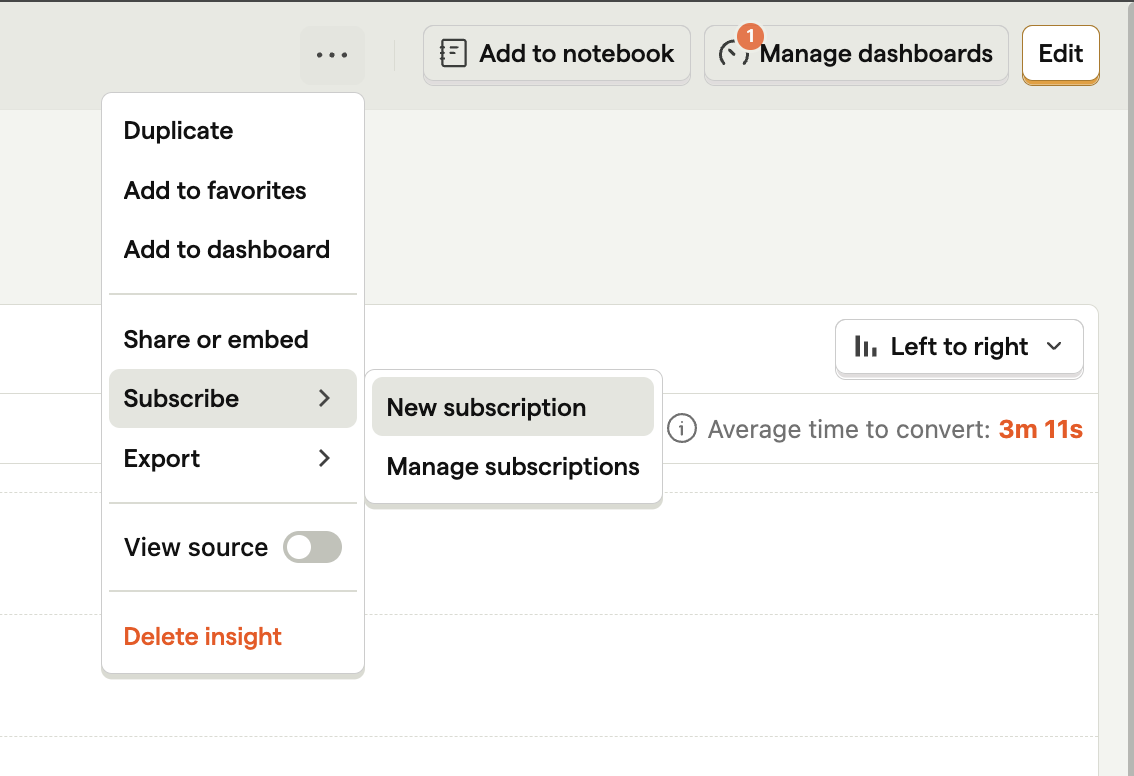
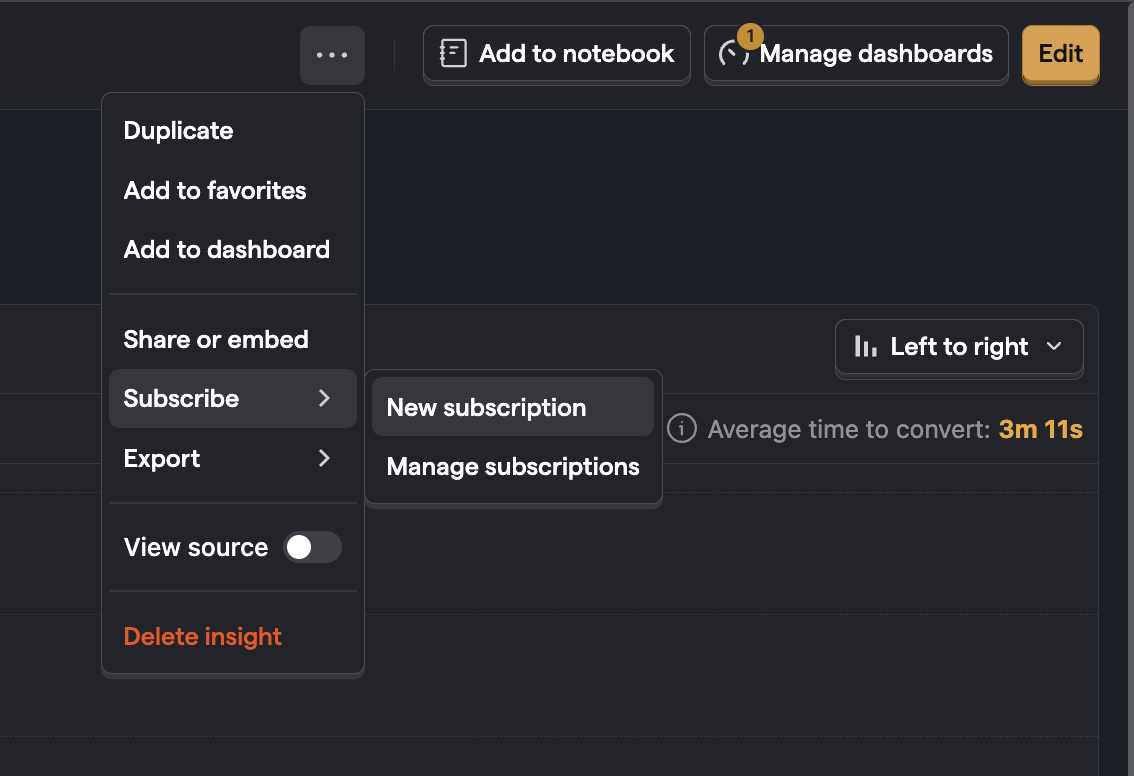
To get started, open the dropdown menu in the top right of any insight or dashboard and click Subscribe.
Selecting insights for dashboard subscriptions
When creating a subscription for a dashboard, you can select which specific insights to include. This is useful when different teams subscribe to the same dashboard but only need the insights relevant to them.
- You can include up to six insights per subscription.
- New subscriptions automatically pre-select the first six insights from the dashboard.
- For dashboards with more than 10 insights, a search box appears to help you find specific ones.
- Selected insights appear in the subscription in the same order as they appear on the dashboard.
Naming your subscriptions
You can give each subscription a custom name to help distinguish between them. This is especially useful when you have multiple subscriptions to the same dashboard or insight – for example, different reports for different teams or frequencies.
For Slack subscriptions, the custom name appears in the message header. For example, a subscription named "Weekly KPI Report" for a dashboard called "Main Dashboard" displays as Weekly KPI Report (dashboard: Main Dashboard) in the Slack message. Without a custom name, the message references the dashboard or insight name directly.
Email subscriptions
When configuring an email subscription you can subscribe multiple emails at once, whether they are a member of your PostHog team or not and set the frequency of the subscription.
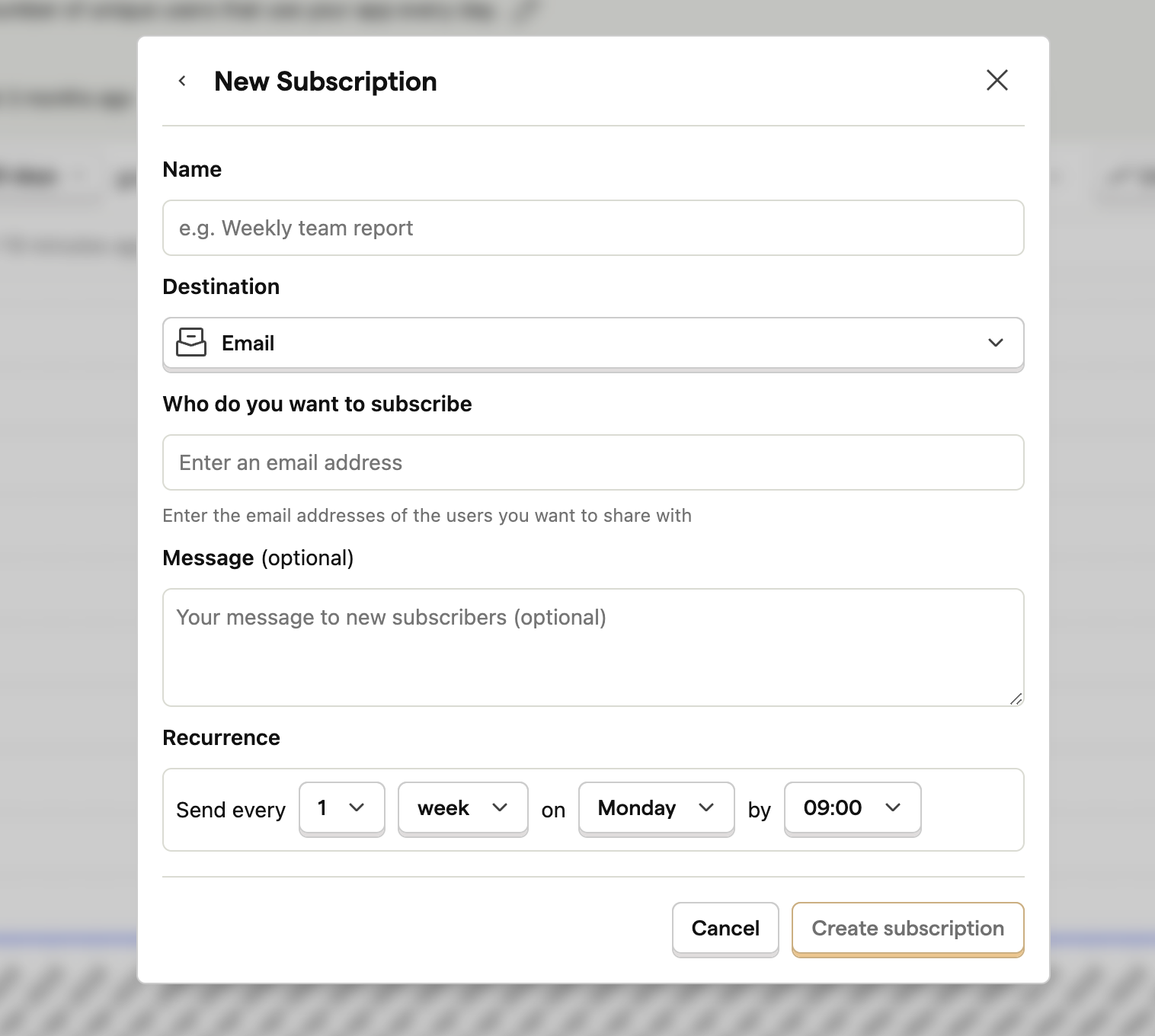
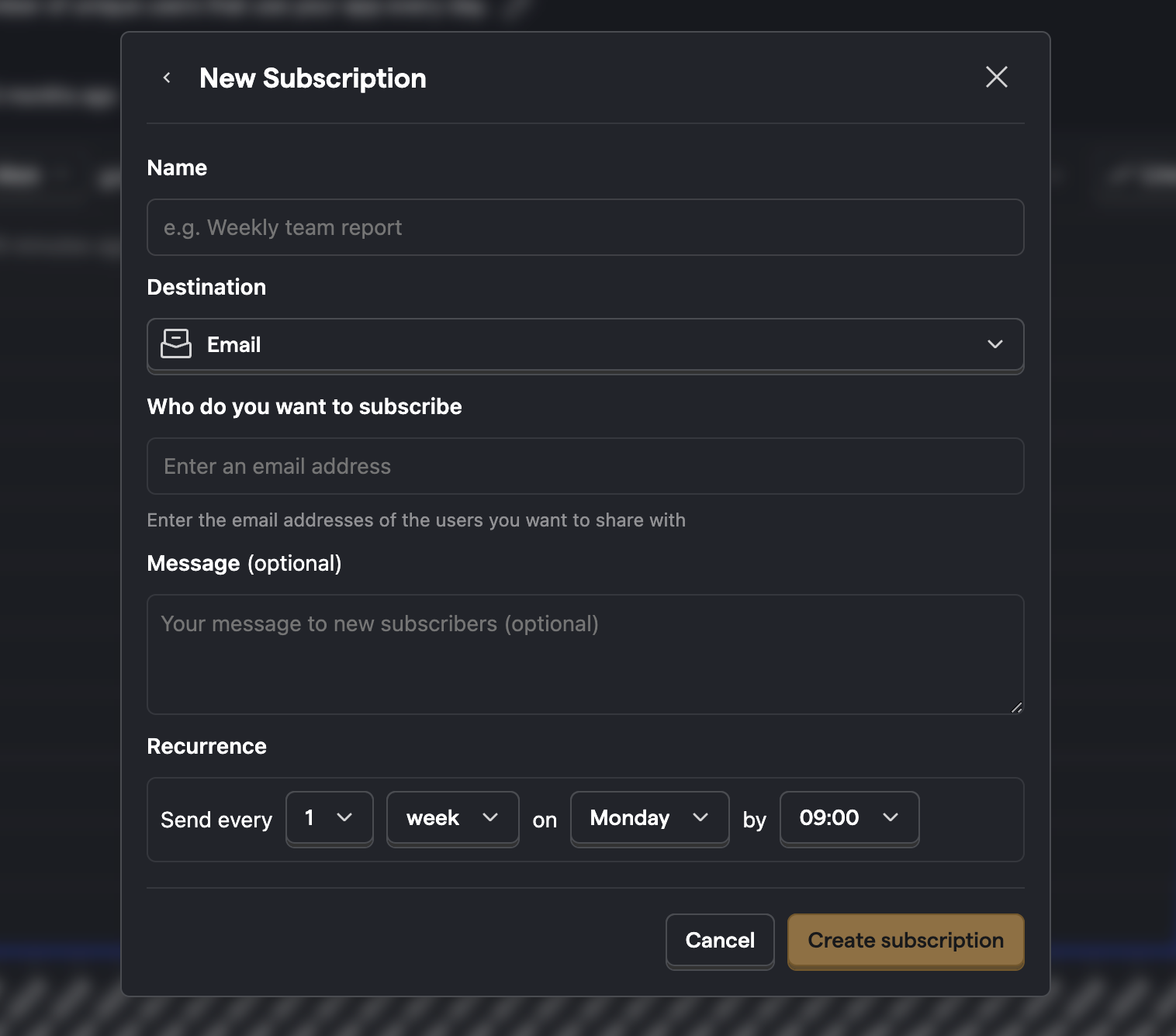
Once saved, any emails not already subscribed receives a notification email informing them what you have subscribed them to. You can optionally include a small personalized message that is sent along to them.
Slack subscriptions
There are three steps to setting up a Slack subscription:
- Adding the PostHog Slack app to your workspace
- Adding the PostHog Slack app to specific channels
- Creating a new Slack subscription in PostHog
1. Adding the PostHog Slack app to your workspace
Starting in PostHog, you can add the PostHog Slack app to your workspace in your project settings.
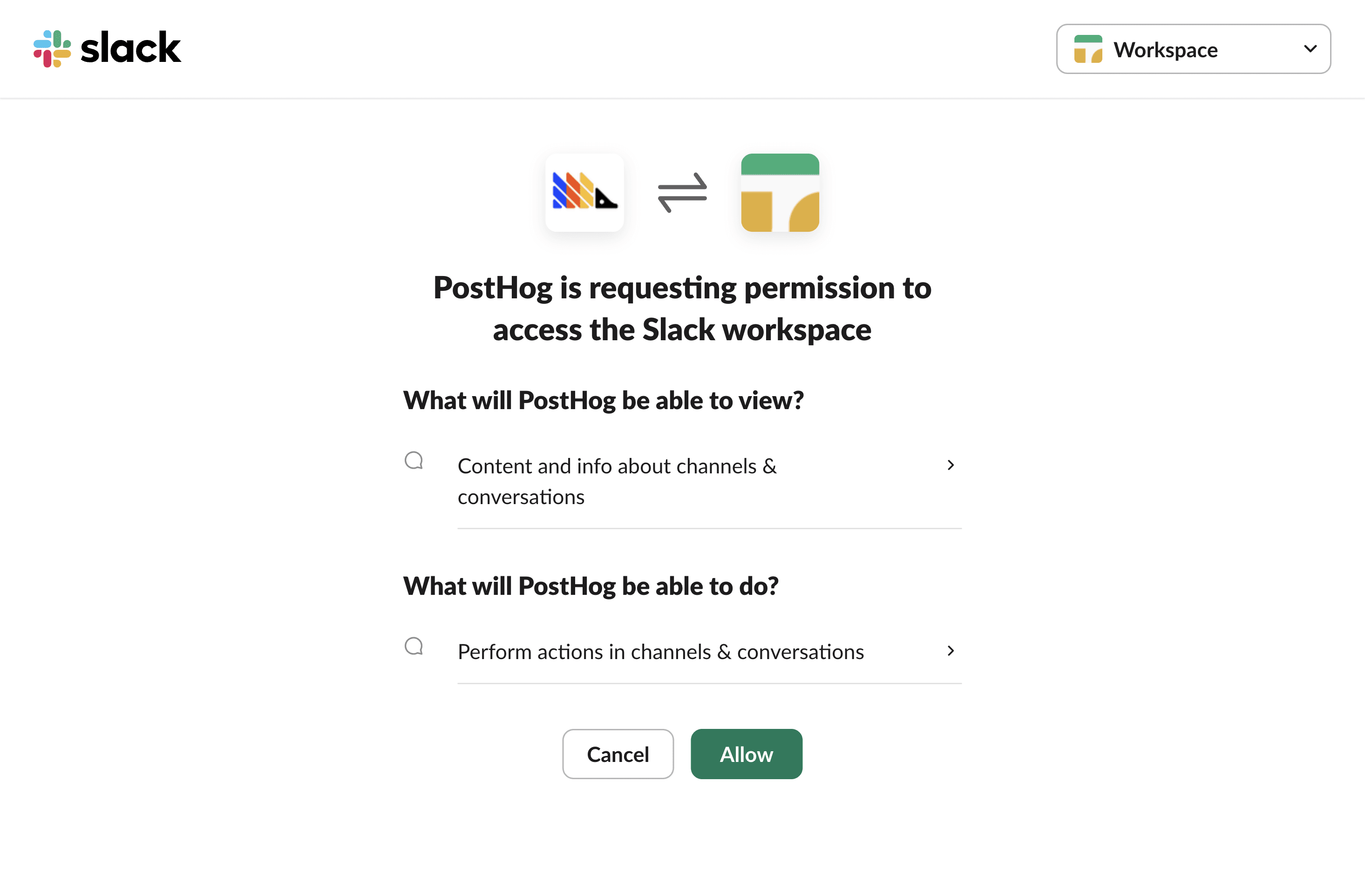
The PostHog Slack app will require some basic permissions which you can grant by clicking the Allow button.
2. Adding the PostHog Slack app to specific channels
Then, head to Slack and add PostHog to specific Slack channels. To do this:
- In the Slack channel header, click the top right menu and click Open channel details
- Navigate to the Integrations tab
- Click the Add an app button
- Under In your workspace, click PostHog
You can also try tagging the @PostHog bot in the channel to add it to the channel.
3. Creating a new Slack subscription in PostHog
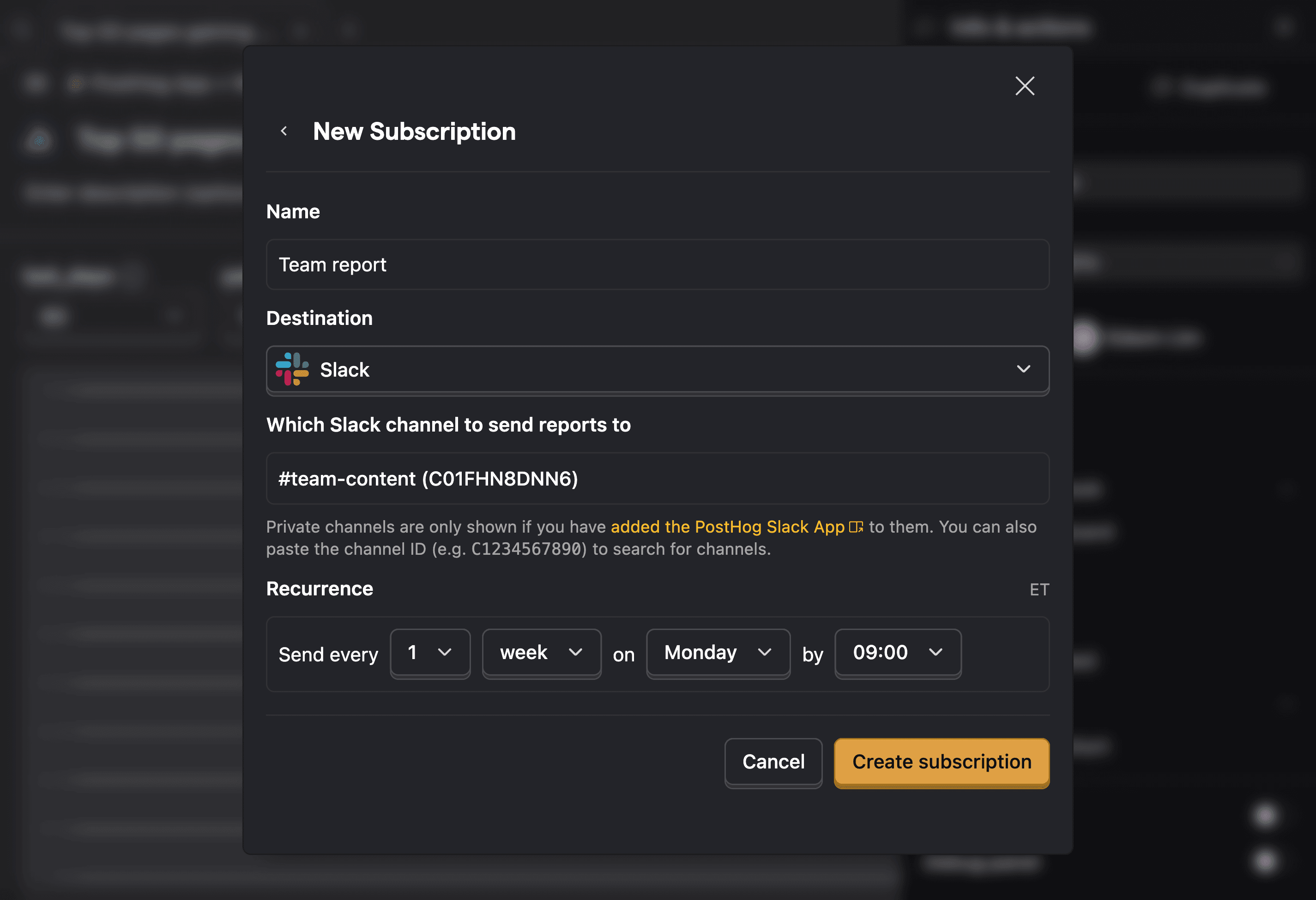
After installing the app, head back to PostHog and add a new subscription. You can do this in any dashboard or insight by clicking the top right menu, then Subscribe, and then Add subscription.
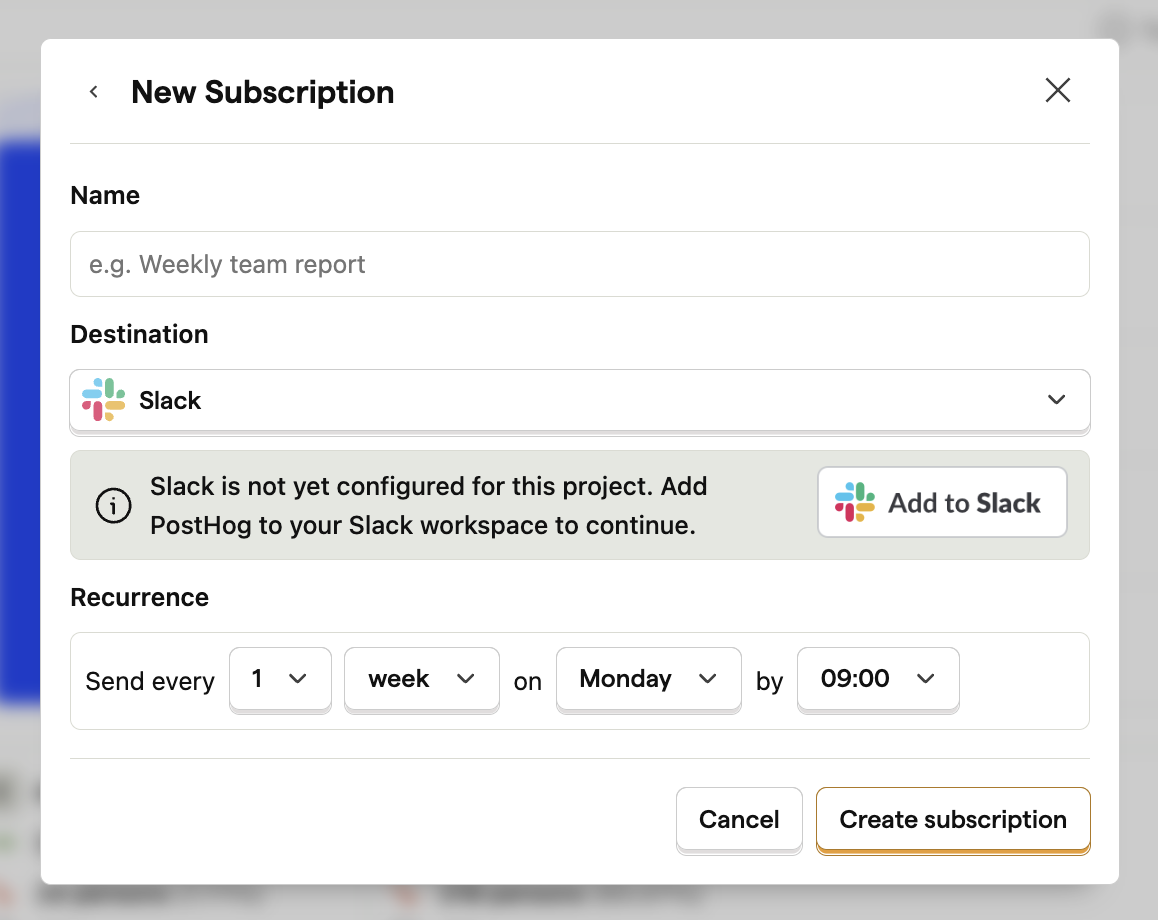
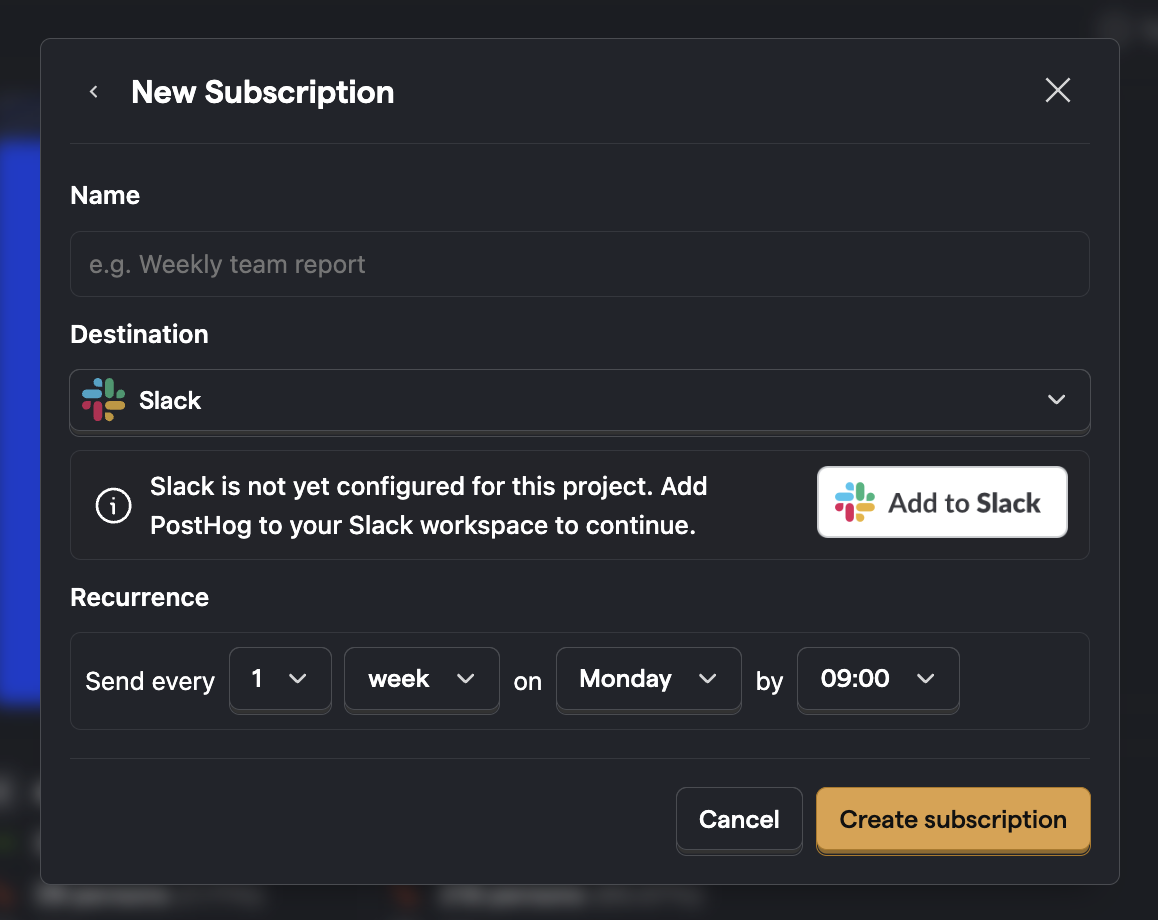
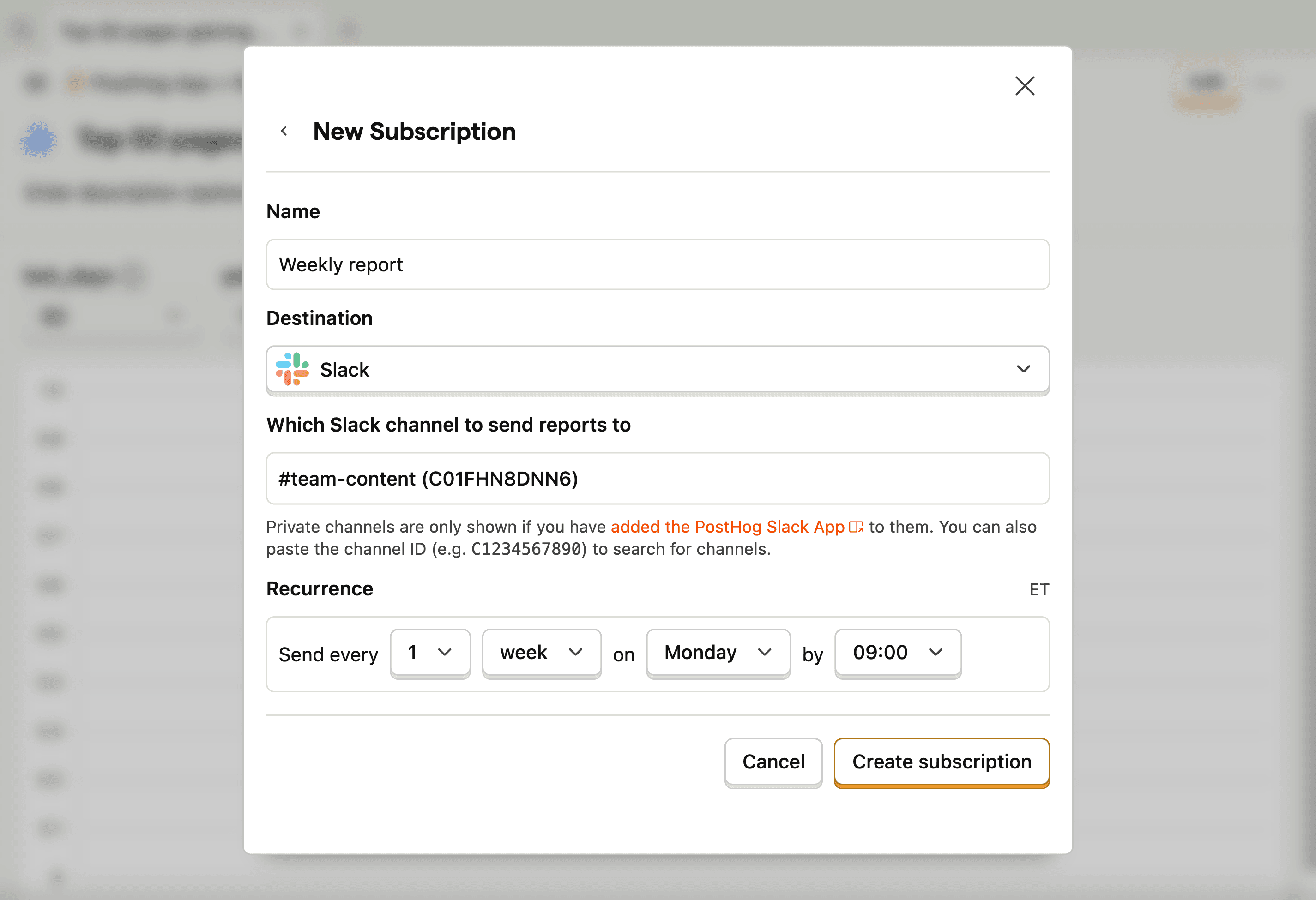
You can then select any channel the app has access to and set a frequency. Private channels are only listed if you have already added PostHog to the relevant channel.
Scheduling options
Subscriptions support three frequency options: daily, weekly, and monthly. You can also set a custom interval (e.g. every 2 weeks) and choose the time of day for delivery.
For monthly subscriptions, you can choose which day to send on:
- A specific weekday (e.g. Monday, Tuesday)
- Any day of the month (by ordinal position)
- A weekday (Monday–Friday) of the month – useful for business-focused reports that should skip weekends
Combine these with an ordinal position – first, second, third, fourth, or last – to schedule deliveries like "the first weekday of the month" or "the last Friday of the month."
Next delivery date
Each subscription displays its next scheduled delivery date, so you can see exactly when the next report is sent. This date updates automatically after each delivery.
When editing a subscription, a preview of the next delivery date appears below the scheduling options so you can verify your configuration before saving.
Testing subscriptions
You can manually trigger a test delivery for any subscription. Click the ... menu on a subscription in the list and select Test delivery. This immediately sends the subscription content to the configured target (email or Slack channel) without waiting for the next scheduled delivery.
This is useful for verifying that the subscription is configured correctly and the content looks as expected.